> For the complete documentation index, see [llms.txt](https://docs.altura.com/altura-documentation/llms.txt). Markdown versions of documentation pages are available by appending `.md` to page URLs; this page is available as [Markdown](https://docs.altura.com/altura-documentation/getting-started/minting-and-importing-nfts/bulk-mint-nfts.md).
# Bulk Mint NFTs
Bulk minting of NFTs is a highly efficient process for creating a large number of NFTs at once. Altura supports bulk minting of up to 500 individual NFTs, each with an unlimited supply. This method is streamlined and can be automated with a script, making it easier to handle large volumes.
## Step-by-Step Guide to Bulk Minting
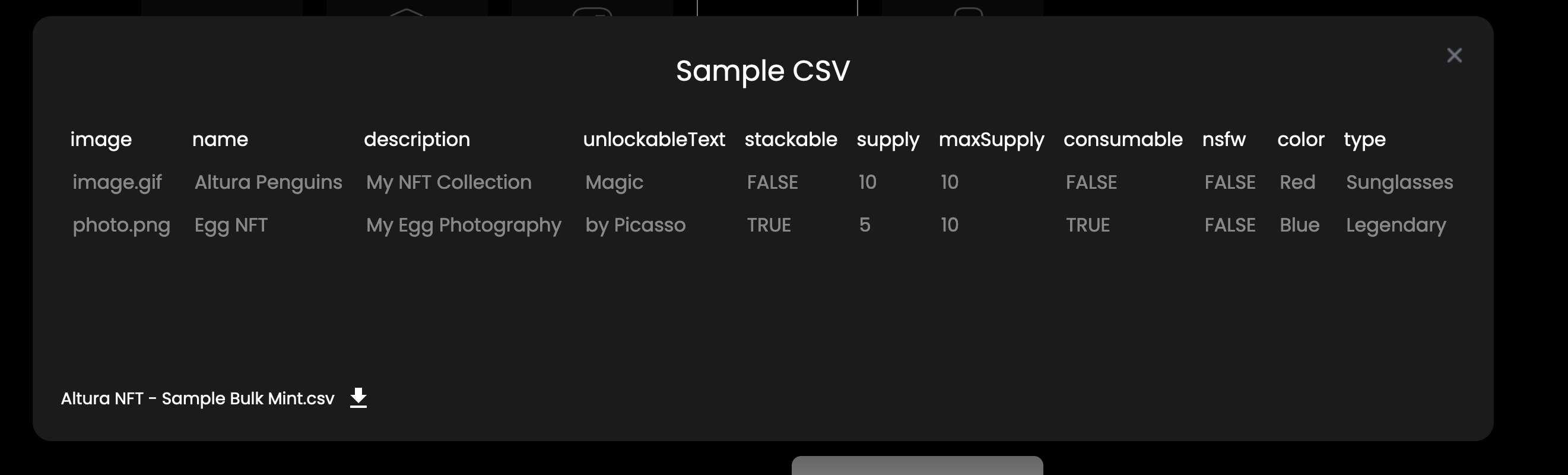
1. Click `View Sample File` and download the example CSV provided.
2. The CSV is used to enter the properties which you would normally enter one by one when [Minting Individual NFTs](/altura-documentation/getting-started/minting-and-importing-nfts/minting-individual-nfts.md). You can generate this CSV using a script.\
\
Each row is a new NFT with a corresponding image you will upload in the next step.\
\
There are nine mandatory fields:
* **Image:** The name of the image file you will upload in the next step
* **Name:** The name of the NFT
* **Description:** The description of the NFT
* **Unlockable Text:** Text that can only be viewed by item owners
* **Stackable:** `TRUE` or `FALSE` depending on whether you would like the item to have the items all share one token ID, or have individual ones.
* **Supply:** The initial supply of the NFT
* **Max Supply:** The maximum supply of the NFT. It is always one if the item is not stackable. Set the value to `UNLIMITED` if the item has no maximum supply.
* **Consumable:** `TRUE` or `FALSE`. Consumable items can be burned directly by game developers and creators using the Altura API.
* **NSFW:** `TRUE` or `FALSE` depending on if the item is NSFW. If true it means your item will not appear in the discover section on the homepage, however, it can still be accessed normally any other way. Failing to enable NSFW on an NSFW item will get your account banned
After these nine mandatory fields, you can enter in your properties in a new column for each property. For example if I wanted colour and rarity, I would add in two new columns `colour` and `rarity`.\
\
An example can be seen on the minting page
3. After you have created the CSV, you can click next and begin to upload your images. You must select all the images that were mentioned in the CSV and the name should line up indentically.
4. You can then upload the CSV file
5. Then press Mint and they will all be minted successfully